Ask people what they would grab from a burning house and, after the people and pets, the answer is almost always the photos. Yet most families protect their photo collection with a strategy best described as hoping the phone never breaks. Photos today are born digital, live on devices that get dropped, lost, stolen, and retired, and can vanish in a moment that produces a very specific cold feeling in the stomach. Backing them up properly is not complicated or expensive; it is a one-weekend setup and a light yearly ritual. Here is how to do it so that no single accident, glitch, or forgotten password can take your family's memories with it.
Learn the 3-2-1 Rule, the Only Jargon You Need
Photo backup has one golden rule, borrowed from professionals and easy to remember: keep three copies of anything you care about, on two different types of storage, with one copy somewhere else. Three copies means the original plus two backups. Two types of storage means, for example, a phone or computer plus an external drive plus a cloud service, so one kind of failure cannot claim everything. One copy off-site means that a house fire, flood, or burglary, the disasters that take the computer and the backup drive sitting beside it, still cannot reach every copy.
Every solid family photo setup is just some comfortable version of 3-2-1. A phone that syncs to a cloud library, plus an external drive updated a few times a year, satisfies it completely. The rest of this article is simply that sentence with the details filled in.
Let the Cloud Do the Daily Work
The first and most important move is turning on automatic cloud backup for every phone in the family, because phones are where photos are born and phones are what fall into lakes. Every major platform offers a photo service that quietly uploads each picture as you take it, and that automation is the entire point: a backup that depends on someone remembering is a backup that eventually does not happen. Check that it is genuinely on, uploading at full quality, and not silently paused because the free storage tier filled up two years ago.
Storage plans cost a small monthly amount, and it is one of the better subscriptions a family can carry, real insurance for irreplaceable things. Put every family member's phone under the plan, including the teenager whose camera roll is the household's true documentary archive. When a phone shatters, this is the difference between an errand and a small tragedy: sign in on the replacement, and the library reappears.
Add a Local Copy You Physically Own
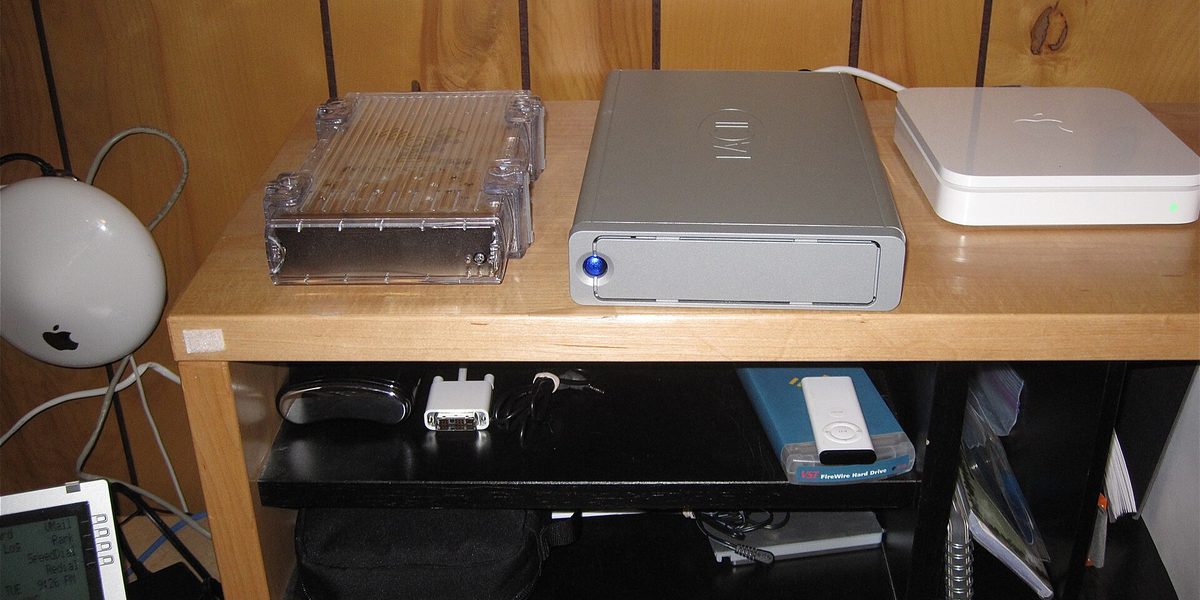
Cloud services are excellent, but a proper plan never rests entirely on one company, one account, and one password. Accounts get locked, subscriptions lapse quietly, and services change terms. So add a copy you can hold: an external hard drive kept at home, onto which you periodically download your entire photo library. Every major photo service offers a way to export everything you have stored, and doing a full or incremental download onto the drive a few times a year keeps your ownership real.
- Buy more capacity than seems sensible: photo libraries only grow, and video swallows space quickly.
- Keep folder structure simple: one folder per year is enough; search and photo software handle the rest.
- Label the drive: a note with what it holds and the date of the last update turns a mystery gadget into an archive.
- Prefer copying to moving: the drive is a backup, not the only home; never let it become the single copy of anything.
Put One Copy Somewhere Else
The off-site copy is the step most families skip and the one that covers the scenarios nobody likes to imagine. It can be humble: a second inexpensive drive, updated a couple of times a year, that lives at a grandparent's house, a sibling's place, or in a desk drawer at work. Swap it with the home drive whenever you visit, so both stay reasonably current. If your cloud library is genuinely complete and healthy, it already counts as your off-site copy, and the two drives become extra insurance rather than a requirement.
For families with two homes in the mix, divorced parents, adult siblings archiving a childhood collection, duplicating the archive in both places doubles as both backup and generosity. Storage is cheap; there is no rule that says only one person gets to hold the family's history.
Rescue the Photos That Live Nowhere Safe
Most families have memory orphans: photos trapped on old phones in junk drawers, aging laptops, memory cards from retired cameras, and accounts on services nobody has opened in years. Set aside one honest afternoon for a rescue mission. Power up each old device, charge it if needed, and pull its photos into the main library, letting duplicate detection sort out the overlap. Check old messaging apps and social accounts too, since for a stretch of years those received better photos than anyone saved elsewhere.
Then there are the prints: shoeboxes, albums, framed pictures of grandparents that exist in exactly one copy. Digitizing them ranges from photographing them carefully with a phone in good light, which is quick and surprisingly decent, to scanning apps, home scanners, or sending boxes to a digitizing service. Prioritize the irreplaceable and the fragile, the oldest photos first. Once scanned, they join the same 3-2-1 flow as everything else, and a hundred-year-old face becomes as durable as yesterday's snapshot.
Organize Just Enough to Find Things
A backup you cannot navigate is a vault with no index. Fortunately, modern photo software does most of the librarian work, sorting by date and place and recognizing faces, so organization can stay light. Spend your effort on the two things software cannot do: naming the people who matter, so faces become searchable across decades, and marking favorites, so the hundred best family photos are always one tap away rather than buried among tens of thousands.
An occasional pruning pass helps the archive too, clearing screenshots and duplicates so backups run faster and storage lasts longer, but do not let tidiness become a prerequisite. An unsorted backed-up library beats an immaculate plan that never ships. Back up first; curate forever after, at leisure.
Do the Yearly Fire Drill
Backups fail silently, which is why professionals test theirs. Once a year, birthdays and new-year weeks work well as reminders, spend twenty minutes verifying instead of assuming. Open the cloud library and confirm recent photos from every family member's phone are actually arriving. Plug in the external drive, confirm it mounts, and spot-check a handful of photos from different years. Refresh the off-site copy. And do one restore test: pick a random old photo and actually download it from the cloud and copy it off the drive, because the ability to put photos in means nothing if you have never confirmed they come back out.
While you are at it, check the boring administrative layer: the storage plan is paid and not nearly full, account recovery details are current, and a trusted person could reach the archive if something happened to you. Several services offer legacy or emergency access settings for exactly this; family photos are, in the end, a family asset.
Final Thoughts
Backing up family photos properly comes down to one rule and one habit: three copies on two kinds of storage with one somewhere else, checked once a year. Let the cloud catch every new photo automatically, keep a drive you own, park a copy off-site, and rescue the memories stranded on old devices and in shoeboxes while they can still be rescued. It is a weekend of setup for a lifetime of not having that cold-stomach moment, and it turns the honest answer to the burning-house question into something calmer: the photos are already safe.