Every remote worker knows the ritual. You sit down at your desk, open the laptop, and begin plugging things in: the charger, the monitor cable, the keyboard receiver, the headset, maybe an external drive. When it is time to move to the couch or head out the door, you reverse the whole ceremony, usually leaving one cable behind and discovering it during your next video call. A USB-C docking station exists to kill that ritual. You plug all your peripherals into the dock once, and from then on, a single cable connects your laptop to everything, including power. One plug to sit down, one unplug to leave. This guide explains how docks work, what varieties exist, and how to choose one that will not disappoint you.
What a Docking Station Actually Does
A docking station is a box that consolidates connections. On one side, it offers the ports your desk needs: video outputs for monitors, several USB ports for accessories, wired networking, audio jacks, and card readers. On the other side, a single cable runs to your laptop. Through that one cable, the dock passes video to your displays, data to and from your peripherals, network traffic, and, on most models, enough power to charge the laptop itself.
The magic comes from the USB-C connector's flexibility. Unlike older connectors that carried one kind of signal, USB-C can carry data, video, and substantial power simultaneously through so-called alternate modes and power delivery. The dock acts as a traffic director, splitting that combined stream into the individual connections your equipment expects. When it works, and with a well-matched dock it simply does, the effect feels like turning a laptop into a desktop computer with one gesture.
Hubs vs Docks: Know the Difference
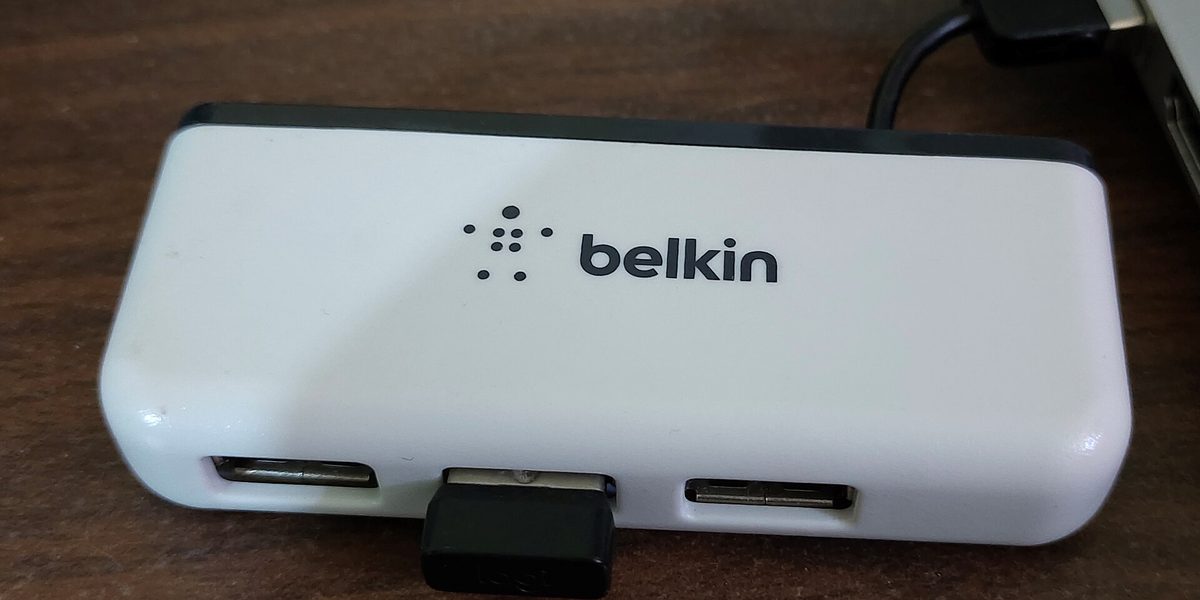
Shopping gets confusing because the market blurs two related products. A hub is a small, unpowered or lightly powered dongle that fans one USB-C port out into a few connections: perhaps one video output, a couple of USB ports, and a card reader. Hubs are cheap, pocketable, and perfect for travel, but they typically rely on the laptop for power and struggle with demanding setups.
A true docking station has its own power supply, which changes everything. Because the dock brings power to the party, it can charge your laptop, drive multiple displays, and run power-hungry accessories all at once without strain. Docks are bigger and cost more, but they belong on a desk, not in a bag, so size rarely matters. A useful rule: if you want one cable to also charge the laptop and drive your monitors reliably, you want a powered dock, not a hub.
Power Delivery: The Spec That Bites First
The most common dock disappointment is a laptop that charges slower than it drains. Docks advertise a wattage they can deliver to the laptop, and that number must meet or exceed what your laptop needs under load. A thin ultraportable sips power and is happy with modest delivery; a big performance machine can out-drink a weak dock during heavy work, leaving the battery slowly falling even while plugged in.
Check your laptop's original charger for its wattage and choose a dock that delivers at least that much, ideally with headroom. Note also that the dock's total power budget is shared: some of it feeds your accessories and any fast-charging ports. A dock with a generous power supply keeps everything satisfied simultaneously, which is exactly the effortless experience you are paying for.
Monitors: Where Compatibility Gets Tricky
Driving external displays is the dock's hardest job and the place where buyers most need to read carefully. How many monitors a dock can run, and at what resolution and refresh rate, depends on three things at once: the dock's video outputs, the bandwidth of the connection standard it uses, and what your particular laptop's USB-C port supports. All three must agree.
Before buying, confirm your laptop's port actually supports video output over USB-C, because a bare charging-only port cannot feed any dock a picture. Then match ambitions to bandwidth: a single sharp display is easy; two high-resolution displays demand a higher-bandwidth dock and port; three displays or very high refresh rates push into premium territory. Some docks use compression-based technologies with installed drivers to squeeze extra displays through limited bandwidth, which works well for office tasks but less well for fast motion. When in doubt, check the dock maker's compatibility notes against your exact laptop.
Ports Worth Wanting
Beyond power and video, evaluate a dock by the connections your desk actually uses. Think through a normal week and count what you plug in. Common priorities include:
- Enough USB ports for keyboard, mouse, webcam, and headset, with at least a couple facing forward for easy access.
- Wired network connectivity, which remains faster and more stable than wireless for video calls and large transfers.
- A front-facing high-power port for charging a phone.
- Card readers if you work with cameras.
- A headphone jack within arm's reach.
Port placement matters more than it seems. Rear ports keep permanent cables tidy; front ports serve grab-and-go accessories. A dock with everything on the back looks clean but makes plugging in a flash drive an archaeology project.
Setting Up for the One-Cable Life
A dock rewards a few minutes of deliberate setup. Position it so the single laptop cable reaches your sitting position with a little slack, then connect every peripheral to the dock and route those cables permanently: behind the desk, through clips or a tray, out of sight and out of mind. From now on those cables never move again.
Expect a brief settling-in period. The first connection may prompt driver installs or display arrangement adjustments; set your monitor layout, audio output, and default microphone once, and most systems remember the whole configuration every time you reconnect. If something misbehaves later, the troubleshooting order is nearly universal: reseat the laptop cable, power-cycle the dock, try the laptop's other USB-C port, and update the dock's firmware. The overwhelming majority of dock gremlins fall to one of those four moves.
Common Pitfalls to Avoid
A few mistakes account for most dock frustration. Buying a bargain hub and expecting powered-dock behavior leads to slow charging and flickering monitors. Using a cheap or overlong cable between laptop and dock causes mysterious dropouts, because that one cable carries everything and quality genuinely matters; use the cable the dock ships with. Assuming any USB-C port supports video leads to a dock that charges but shows nothing. And ignoring the power budget leads to the slowly draining battery described earlier. Every one of these is avoidable with five minutes of checking before purchase, which is a good trade against months of small daily irritations. A final tip for multi-computer households: if a work laptop and a personal one share the desk, confirm both machines get along with the same dock before buying, because the one-cable trick is at its best when any laptop in the house can borrow the whole desk with a single plug.
Final Thoughts
A good docking station is one of those unglamorous purchases that quietly improves every single workday. The tangle of chargers and cables disappears, your desk gets cleaner, and sitting down to work becomes a one-second action instead of a two-minute ceremony. Choose a powered dock over a bare hub for a permanent desk, match its power delivery to your laptop, verify your monitor ambitions against real bandwidth, and route your cables once with care. Do that, and the dock fades into the background, which is precisely the point: the best technology on your desk is the kind you never have to think about again.