Almost everything that matters to us now lives as files: two decades of family photos, tax records, the novel draft, scans of important documents, the address book, the home videos. Yet most people protect this digital life with nothing but hope. Hard drives fail without warning, laptops get stolen from cafés, phones go swimming, and one wrong click can encrypt or erase a folder forever. Cloud backup exists to make all of those disasters survivable, quietly copying your files to secure servers so that losing a device never means losing what was on it. The concepts are simple, the setup takes an evening, and the peace of mind lasts for years. This guide covers what cloud backup actually is, how it differs from the sync services you may already use, and how to build a plan that protects what matters.
Backup and Sync Are Not the Same Thing
The most dangerous misconception in personal computing is believing that a sync service is a backup. Sync services mirror a folder across your devices: change a file on the laptop and the change appears everywhere. That is wonderfully convenient, but mirroring cuts both ways. Delete a file, and the deletion syncs everywhere too. If a file becomes corrupted or maliciously encrypted, the damaged version dutifully replaces the good one on every device you own.
Backup, by contrast, is a one-way copy with history. A backup service takes what is on your computer and stores versions of it elsewhere, so yesterday's healthy file still exists even after today's disaster. Many sync services do keep deleted files and old versions for a limited window, which softens the difference, but the retention is often short and easy to overrun. The safe mental model: sync is for convenience, backup is for survival, and a complete setup usually involves both.
The 3-2-1 Rule, in Plain Language
Backup professionals compress decades of hard lessons into one memorable rule: keep three copies of anything important, on two different kinds of storage, with one copy somewhere else. Three copies means the original plus two backups, so no single failure is fatal. Two kinds of storage means not trusting one technology or device; a computer plus an external drive, for instance. One copy offsite means that fire, flood, or burglary cannot take everything at once, and this is precisely the role the cloud plays best.
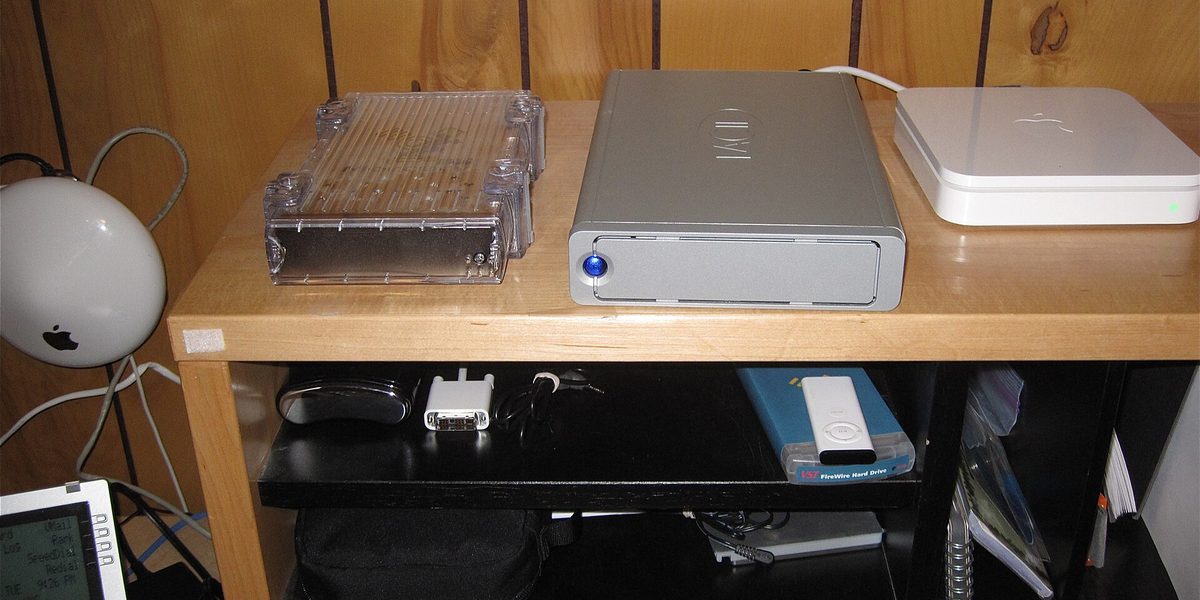
For a typical household, the rule translates into something refreshingly simple: your computer holds the originals, an external drive at home holds a local backup, and a cloud service holds the offsite copy. The local drive gives you fast, free restores when you delete the wrong folder; the cloud copy is the deep insurance that survives anything that happens to your home. Neither alone is enough; together they cover almost every realistic disaster.
Choosing What to Back Up
You do not need to back up everything, and trying to often leads to abandoning the project. Applications and the operating system can be reinstalled; what cannot be recreated is your data. Walk through your computer and phone asking one question: if this vanished tonight, would it hurt? The usual answers:
- Photos and videos, the most commonly mourned loss and often scattered across devices.
- Documents: tax records, contracts, scans of identification, financial paperwork.
- Creative work: writing, music, designs, code, family history research.
- Irreplaceable miscellany: voicemail recordings, exported message threads, address books.
Round these up into a small number of top-level folders rather than leaving them sprinkled across the desktop and downloads folder. A tidy structure makes backup selection trivial and, just as important, makes restoring after a disaster comprehensible instead of chaotic. Do not forget the phone: setting it to automatically copy photos to your cloud service closes the most common gap in family archives.
Picking a Cloud Backup Approach
Cloud protection comes in two broad styles. The first is dedicated backup software: install it, tell it which folders matter, and it continuously or nightly copies everything to the provider's servers, keeping old versions and deleted files for a defined period. This style shines for whole-computer protection because it is thorough and hands-off; its job is disaster recovery, not day-to-day file access.
The second style is using the sync storage you may already pay for as a de facto offsite copy, by keeping your important folders inside it. This is better than nothing and genuinely convenient, but remember the earlier caveat about deletions propagating; check how long the service retains deleted files and old versions, and make sure your local external-drive backup covers the gap. Whichever style you choose, look at a few things beyond price: how the service handles versions, how restoring works, whether it encrypts your data both in transit and at rest, and whether it can send you a physical drive if you ever need everything back at once.
Set It Up So You Can Forget It
The defining feature of a good backup system is that it runs without you. Backups that depend on remembering to drag folders to a drive fail the first busy month, and disasters have a talent for arriving during busy months. Configure your software to run automatically, at least daily for the cloud copy and on a schedule for the local drive. Let the first cloud upload take its time; copying years of photos through a home connection can take days or weeks, and that is normal. It only happens once, and every later run uploads just the changes.
Then handle the two details that trip people up. First, protect the backup account itself with a strong, unique password and two-factor authentication, because an account that can delete your backups deserves fortress-level protection. Second, if you choose a service offering a personal encryption key that even the provider cannot recover, store that key somewhere truly safe, since losing it means losing the backups it protects.
Test Your Restores Before You Need Them
An untested backup is a hope, not a plan. Twice a year, pretend disaster struck: pick a random file and restore it from the cloud, and pull a folder off the external drive to confirm it opens. Check that your most precious folders are actually included in the backup set, since a photo library that quietly moved to a new location may have been silently left behind for months. Five minutes of testing converts assumptions into knowledge, and it also teaches you the restore process while nothing is at stake, so the real emergency someday feels routine rather than terrifying. While you are at it, glance at the service's dashboard occasionally to confirm backups are actually completing; software that fails silently is rare, but it exists. A calendar reminder labeled simply restore one file is enough scaffolding to keep the habit alive, and pairing it with another recurring chore, like changing furnace filters or checking smoke-detector batteries, makes it nearly effortless to remember.
Final Thoughts
Cloud backup is one of those rare technologies where a small, boring effort buys protection against genuinely life-altering loss. The recipe is short: gather what matters into sensible folders, keep a local copy on an external drive, add an automatic cloud backup for the offsite copy, lock down the account, and test a restore twice a year. Follow it, and the day a laptop is stolen or a drive clicks its last click becomes an inconvenience instead of a tragedy. Your photos, your paperwork, and your creative work deserve better than luck, and an evening of setup is all it takes to give them better.