Laptops rarely die all at once. Instead they slow down by degrees: boot times stretch, the fan grows louder, browser tabs stutter, and one day you realize you dread opening the thing. It is tempting to blame age and start shopping, but most of that sluggishness is not worn-out hardware. It is accumulated clutter, background software, heat, and neglected settings, and nearly all of it is reversible. A few hours of honest maintenance can pull years of useful life out of a machine you already own. Here is what genuinely works, roughly in order of impact, and what you can safely skip.
Free Up Storage Before Anything Else
A nearly full drive is the most common reason an older laptop feels broken. Operating systems need free working space for temporary files, updates, and virtual memory, and when the drive runs close to capacity, everything from boot to saving files gets slow and flaky. As a rule of thumb, try to keep a healthy cushion of free space at all times, on the order of ten to twenty percent of the drive.
Start with the built-in storage tools, which show what is eating space and can clear temporary files safely. Then go after the big, boring wins: old downloads, duplicate photo exports, video files you have already backed up, forgotten virtual machine images, and applications you have not opened in a year. Move large media libraries to an external drive or cloud storage rather than deleting them. Avoid aggressive third-party cleaner utilities that promise miracles; the ones that do anything useful mostly duplicate the built-in tools, and the worst of them cause real damage.
Tame the Startup Apps
Every application that launches itself at boot steals memory and processor time for as long as the laptop is on, and these hangers-on accumulate for years. Chat clients, updaters, cloud sync tools, printer helpers, and utilities you forgot installing all pile into the startup list, and each one alone seems harmless. Together they are why an older machine takes minutes to become usable after login.
Both major operating systems let you review and disable startup items in their settings or task manager. Walk the list and be ruthless: if you do not need it running the moment you log in, disable it. The application still works normally when you launch it yourself; it just stops squatting in memory all day. This single cleanup often produces the most noticeable everyday improvement of anything on this list, and it is completely reversible if you disable something you miss.
Fix the Browser, Because the Browser Is the Computer Now
For most people, the majority of computing happens in a browser, so a bloated browser makes the whole laptop feel old. Extensions are the usual culprits: each one adds memory use and can slow every page you load. Prune the list down to the few you genuinely use. Then look at your tab habits; dozens of open tabs consume enormous amounts of memory on a machine that has little to spare. Modern browsers offer tab sleeping or memory saver features that suspend background tabs, and turning those on gives an older laptop room to breathe.
If pages feel slow despite that, try creating a fresh browser profile or resetting the browser to defaults. Years of accumulated data and misbehaving site permissions can drag performance down in ways no single setting explains, and a clean profile often feels startlingly quick. Sign back into the accounts you need and let the rest of the clutter stay behind.
Install the Updates You Have Been Postponing
It feels intuitive that updates slow old machines down, and once in a while a major upgrade does raise requirements. But skipping routine updates usually makes things worse, not better. Updates fix memory leaks, patch bugs that cause runaway background processes, and refresh drivers that keep the hardware working efficiently. An old system several versions behind is often running with known problems that were solved long ago.
Set aside an evening, plug the laptop in, and let the operating system, browser, and your main applications fully update. Restart afterward, and give the machine an hour or two of idle time plugged in; systems often run indexing and optimization tasks after big updates, and judging performance during that window is misleading. While you are at it, make a habit of actually restarting the laptop every week or so. Sleep is convenient, but weeks of accumulated uptime leak memory on even healthy systems.
Deal With Heat, the Silent Throttle
Laptops slow themselves down on purpose when they overheat, a behavior called thermal throttling. An aging machine full of dust cannot shed heat, so it spends its life throttled, with the fan roaring while performance sinks. If your laptop is hot to the touch and loud under light work, heat is likely part of your problem.
The fixes are physical rather than digital. Use short bursts of compressed air to clear the vents while the machine is off. Keep the laptop on hard, flat surfaces rather than beds and cushions that block airflow, and consider a simple stand that lifts it off the desk. If you are comfortable opening the machine, or willing to pay a repair shop a modest fee, cleaning the fans properly makes a dramatic difference on a machine that has never been serviced. Cooler hardware runs at full speed, and the quieter fan is a pleasant bonus.
Know Which Upgrades Are Worth It
Some slowness really is hardware, and two upgrades tower above all others in value on machines that support them.
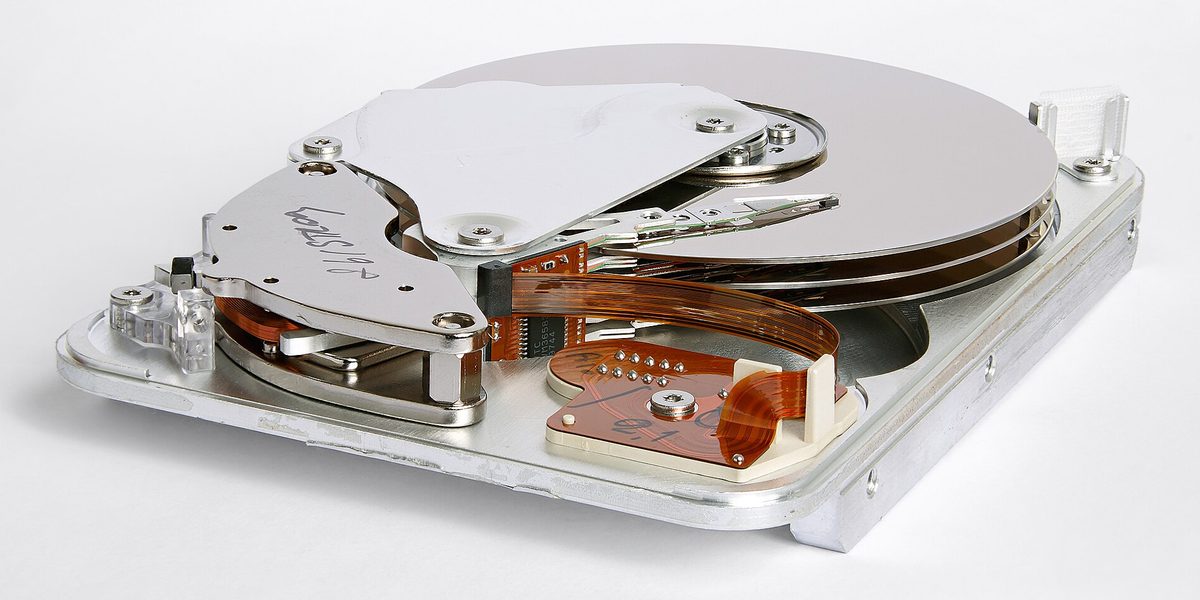
- A solid state drive, if the laptop still has a spinning hard drive, is the single most transformative upgrade in personal computing. Boot times, application launches, and file operations improve so much that the machine feels new.
- More memory helps if your usage overflows what you have; the sign is heavy slowdown when many tabs and apps are open at once, accompanied by constant drive activity.
- A battery replacement does not add speed, but a worn battery can cause shutdowns and power-related throttling, and replacing it restores the portable part of the portable computer.
Check whether your model allows these upgrades before buying parts, since many thin laptops seal everything in. If neither storage nor memory can be upgraded and both are genuinely inadequate, that, and only that, is the honest signal that replacement time is approaching.
The Nuclear Option: A Clean Reinstall
When a machine has years of layered installs, migrations, and mystery software, a fresh operating system install resets it to its best possible self. It is less scary than it sounds: modern systems offer a built-in reset that reinstalls cleanly, and your files can ride along or be restored from backup afterward. The essential step is the backup, done and verified before you begin, along with a note of any licenses and passwords you will need to sign back in.
Reinstall only the applications you actually use, and resist restoring old junk out of habit. Most people who do this on aging hardware are surprised at how much of the slowness was never the hardware at all. It is the closest thing to time travel a laptop gets.
Final Thoughts
An old laptop does not owe you slowness. Clear real space on the drive, evict the startup freeloaders, put the browser on a diet, stay current on updates, and let the machine breathe by dealing with dust and heat. Add memory or a solid state drive where the hardware allows, and keep a clean reinstall in reserve for the truly cluttered cases. Do the maintenance once and then lightly once or twice a year, and the laptop you already own can stay pleasant to use until you replace it on your schedule, not its.