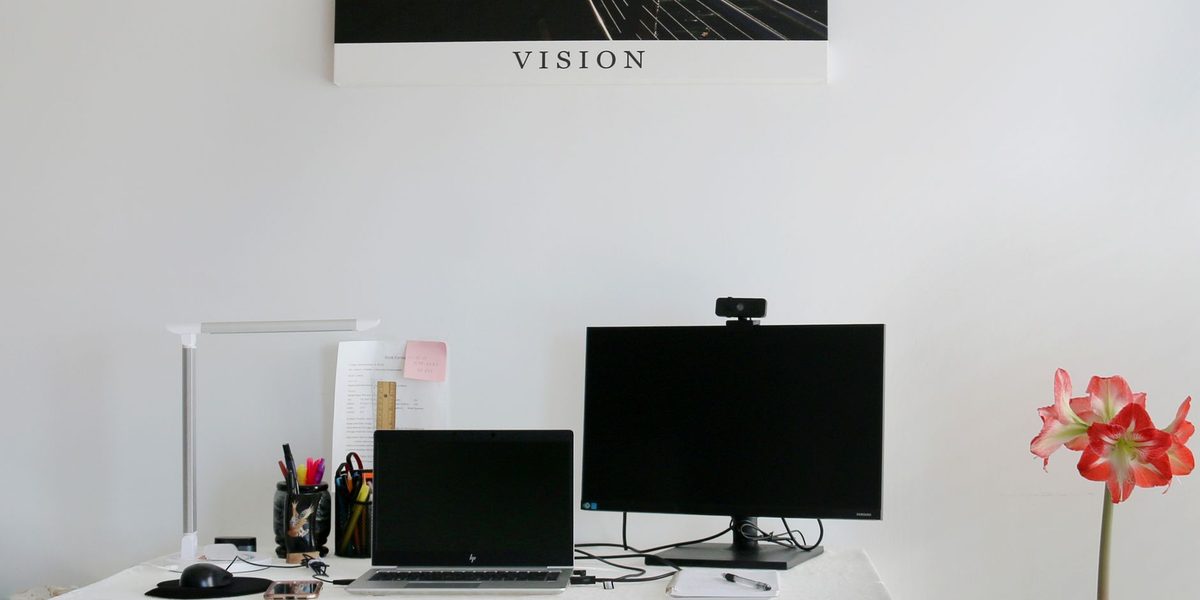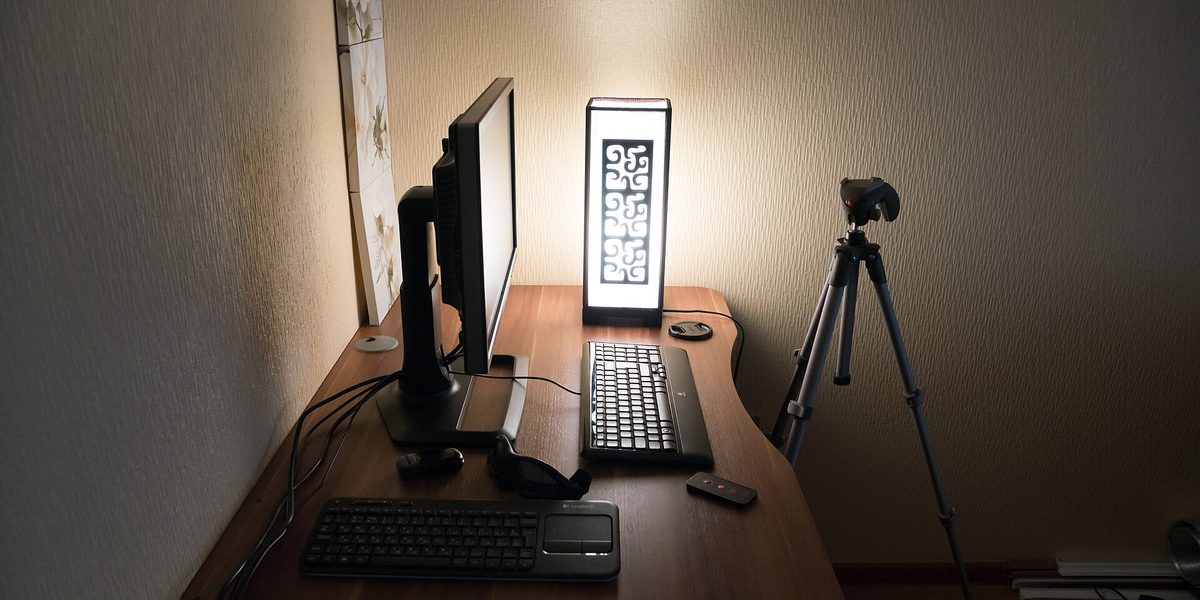
If your neck aches by mid-afternoon, your shoulders creep toward your ears, or your eyes feel sandy after a day of screen work, the culprit is usually not your chair, your age, or your job. It is geometry. The position of your monitor relative to your eyes, and the position of your body relative to your desk, determine the posture you hold for thousands of hours a year, and most home setups get that geometry wrong in the same few predictable ways. The fixes are cheap, often free, and take an afternoon. Here is how screen placement and posture actually work, and how to set up a desk your body stops complaining about.
Start With Height: The Top of the Screen at Eye Level
The most common and most costly mistake in home offices is a screen that sits too low, and the laptop is the chief offender. When the display is below your natural line of sight, your head tilts down to meet it, and your neck muscles spend the day holding up a bowling ball at an angle. The classic guideline: with you sitting upright, the top edge of the screen should be at or slightly below eye level, so your gaze falls naturally on the upper third of the display and the rest of the screen sits below horizontal. Your eyes are comfortable looking slightly downward; your neck is not comfortable tilting to make that happen.
Getting there rarely requires new equipment. A stack of sturdy books under a monitor works exactly as well as a fancy riser. Laptop users need two things: something to raise the laptop, and a separate keyboard and mouse, because once the screen is at eye height the built-in keyboard is unusable. A monitor arm adds easy adjustability and frees desk space, but it is a convenience, not a requirement. One caveat: if you wear multifocal or progressive lenses and find yourself lifting your chin to read through the lower part of the lens, lower the screen an inch or two until your head stays level.
Distance: Roughly an Arm's Length, Then Adjust
The standard starting point for viewing distance is about an arm's length away, fingertips to screen when you extend your arm from your seated position. Larger screens want a bit more distance; smaller ones tolerate a bit less. The real test is behavioral: if you catch yourself leaning in to read, the screen is too far away or the text is too small; if you are sitting back yet moving your head to scan from edge to edge, it is too close or too large for the distance.
Resist the instinct to fix small text by leaning forward. Leaning is how good chair posture dies. Instead, increase the text size or display scaling until you can read comfortably from a fully seated, back-supported position. Modern systems make everything larger with a single setting, and there is no prize for squinting at tiny fonts. The screen should come to your eyes; your spine should never go to the screen.
Angle and Alignment: Square, Centered, and Slightly Tilted
Your primary monitor belongs directly in front of you, centered on your body and your keyboard, square to your shoulders. A screen parked off to one side forces a sustained neck rotation that feels like nothing for an hour and like a knot by the end of the week. Tilt the screen back slightly, ten to twenty degrees, so your line of sight meets it roughly perpendicular.
Dual-monitor users should place screens according to actual use. If one monitor is primary and the other holds reference material, center the primary and angle the secondary beside it. If you genuinely split time evenly between two, center the seam between them so your neck rotates equally in both directions. And mind the light: position the setup so windows are beside the screen rather than behind it or behind you. A bright window behind the monitor forces your eyes to fight the contrast all day, and one behind you throws reflections onto the glass.
Now Anchor the Body: Chair, Feet, and Arms
Screen position only works when your body has a stable base beneath it. Build the posture from the ground up:
- Feet flat on the floor or on a footrest, not dangling, not tucked under the chair.
- Knees around hip level, bent near a right angle, with a little space between the seat edge and the backs of your knees.
- Back against the backrest, with the chair's lumbar support, or a cushion, filling the curve of your lower back. A backrest you never touch is not supporting anything.
- Elbows near your sides, bent about ninety degrees, with forearms level and wrists straight over the keyboard. Raise or lower the chair to make this true, then fix any resulting foot dangle with a footrest.
- Shoulders relaxed, not shrugged. If your shoulders climb, your desk or armrests are effectively too high for your chair height.
Notice the order of operations: chair height is set for your arms and the keyboard, the footrest reconciles your legs to that height, and the monitor riser reconciles the screen to your eyes. Each element adjusts to the body, never the reverse. This is also why the keyboard and mouse should sit close enough that you are not reaching, a persistent forward reach loads the shoulders as surely as a low screen loads the neck.
Give Your Eyes Their Own Ergonomics
Even a perfectly placed screen tires eyes that never look away from it. Screen work suppresses blinking and holds focus at one fixed distance for hours, a combination that produces the dry, heavy, end-of-day eye fatigue many people blame on the display itself. The habit that helps most is regular refocusing: every twenty minutes or so, look at something far away, out a window is ideal, for at least twenty seconds, and blink deliberately while you do.
Match the screen to the room as well. Brightness should roughly match the surroundings rather than blazing in a dim room, and a little ambient or task lighting behind or beside the monitor softens the contrast between a bright screen and dark walls. If text ever looks fuzzy at your set distance, check the display's resolution settings and clean the screen before assuming your eyes are the problem. Persistent strain, headaches, or blurriness that adjustments do not fix are worth a conversation with an eye-care professional, especially since screen-distance vision has its own prescription considerations.
The Best Posture Is the Next Posture
Here is the liberating truth behind all these guidelines: there is no single position your body can hold comfortably for eight hours, no matter how correct it is. Ergonomic setup exists to make your neutral posture sustainable, not to freeze you in it. Movement is the other half of the system. Stand up briefly at least once an hour, take calls on your feet when you can, stretch your neck and shoulders between meetings, and let yourself shift and recline periodically, a good chair's recline is meant to be used.
If you have a desk that converts between sitting and standing, alternate rather than picking a side; standing all day trades one set of complaints for another. And re-check your geometry occasionally. Chairs sink, risers get moved during cleaning, and habits drift. A thirty-second audit, screen top at eye level, arm's length away, feet flat, elbows at ninety, shoulders down, catches the regressions before your neck does.
Final Thoughts
Almost every desk-related ache traces back to a handful of measurements: a screen too low, too close, or off to one side, a chair that leaves feet dangling or shoulders shrugged, and too many hours without a change of position. Set the top of the monitor at eye level, keep it about an arm's length away and squarely in front of you, adjust the chair so your arms and feet land naturally, and then move often enough that no single posture gets the chance to hurt you. Your setup should fit you so well you forget about it, which is exactly when the aches stop.