Once you have worked with generous screen space, going back to a single small display feels like writing on a sticky note. Research and reference material on one side, your actual work on the other, chat and email parked where a glance can find them: extra pixels turn constant window shuffling into simple eye movement. The question is no longer whether more screen space helps, but what shape it should take. The classic answer is two monitors side by side. The newer answer is a single ultrawide, one seamless panel stretching across the desk. Both deliver acres of room, yet they feel surprisingly different to live with. This guide compares them across the factors that matter: how you arrange work, how your neck feels at day's end, what your desk and laptop can support, and what kind of work you do.
The Case for Two Monitors
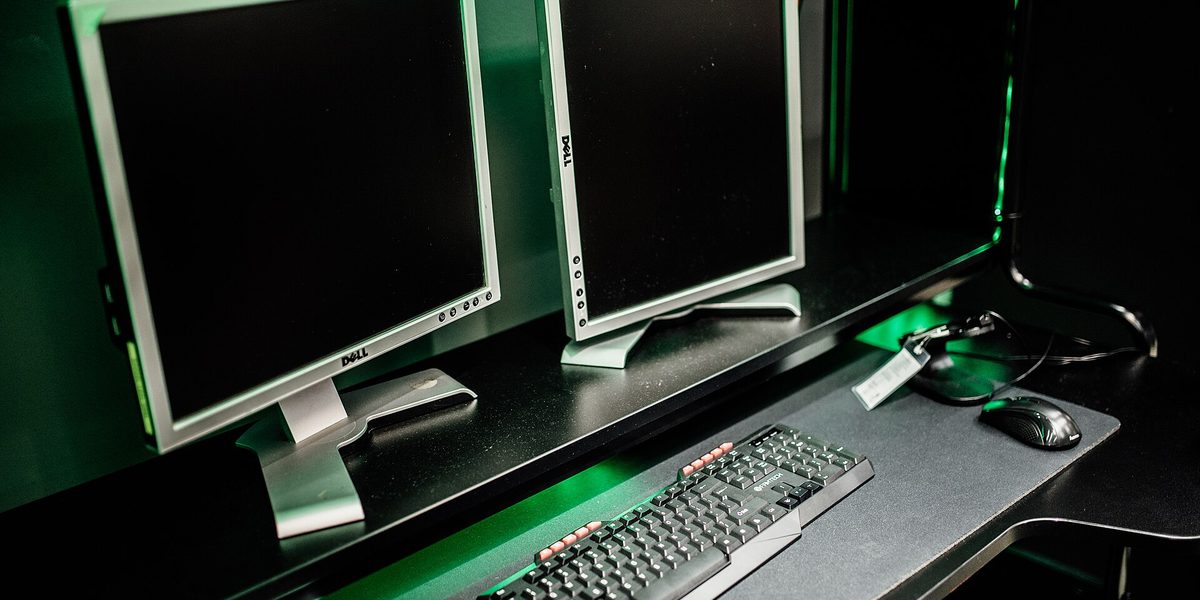
Dual monitors offer something subtle and powerful: physical separation that mirrors mental separation. Each screen becomes a dedicated zone. Communication lives on the left; the real work owns the right. A video call fills one display while your notes fill the other. When you maximize a window, it fills one screen exactly, which is usually precisely what you wanted.
That built-in structure is the dual setup's quiet superpower. Operating systems treat each monitor as its own space, so full-screen apps, virtual desktops, and presentations behave predictably. Sharing your screen in a meeting is cleaner too: you share one display and keep private material on the other, a small feature that has saved countless people from broadcasting their inbox. Dual setups are also flexible to build: you can start with one good monitor and add a second later, mix a new panel with an older one, or pair a laptop's own screen with a single external display as a starter version of the same idea.
The Case for One Ultrawide
An ultrawide replaces two rectangles with one uninterrupted sweep of pixels, and the immediate win is the death of the bezel gap. There is no plastic seam in the middle of your workspace, no cursor hopping across a border, no video call awkwardly split between panels. For work that benefits from continuous width, the experience is glorious: sprawling timelines, wide spreadsheets, long code lines beside documentation, editing suites with panels fanned out in a single view.
An ultrawide is also, simply, one object. One power cable, one video cable, one stand, one set of settings. The desk looks cleaner, setup takes minutes, and there is no fiddling to make two panels match in height, color, and brightness. Many ultrawides curve gently, wrapping the edges toward your eyes so the corners sit at a comfortable viewing distance. For aesthetics-minded workers and minimal desks, the single sweeping panel is the obvious winner.
Window Management: Structure vs Freedom
Daily happiness with either setup comes down to window management, and here the philosophies diverge. Dual monitors impose structure: the bezel is a hard wall, and windows snap naturally to one side or the other. You never have to decide where things go, because the hardware decides for you. The cost is rigidity; a task that wants one huge continuous window fights the seam.
An ultrawide offers freedom, and freedom requires management. A single maximized window on a very wide panel is comically large, with text stretching far beyond comfortable reading width, so you must arrange windows deliberately: halves, thirds, a wide center with narrow wings. Modern systems and inexpensive utilities make this easy with snapping zones and saved layouts, but it is a habit you must actually adopt. People who enjoy tinkering with their workspace thrive on ultrawides; people who want the computer to make layout decisions for them often feel more at home with two distinct screens.
Ergonomics and Comfort
Your neck has opinions about this decision. With dual monitors, the ideal arrangement depends on how you split your time. If you use both screens equally, center the pair so the bezel sits in front of you and each screen angles slightly inward. If one screen is primary, center that one and park the secondary off to the side, angled toward you. The classic mistake is centering one monitor and then spending half the day rotated toward the second, a recipe for a stiff neck.
An ultrawide simplifies the geometry: you center it once, and the curve keeps the edges facing you. Most of your attention naturally stays in the middle, with the wings serving glanceable material. For either setup, the fundamentals still rule: top of the screen at or slightly below eye level, roughly an arm's length away or a bit more for very wide panels, and brightness in balance with the room. Monitor arms are a worthwhile upgrade in both worlds, reclaiming desk space and making proper height effortless.
Practical Realities: Desk, Laptop, and Budget
Before falling in love with either vision, check the unglamorous constraints:
- Desk space: two monitors need a wide, deep desk; a large curved ultrawide needs depth too, since it sits best a little farther from your eyes.
- Laptop support: driving two external displays, or one very wide high-resolution one, demands more from your laptop's video output than a single ordinary monitor; verify what your machine and dock can actually drive.
- Budget path: dual setups can be assembled gradually and cheaply; a quality ultrawide is a single larger purchase.
- Video calls and screen sharing: dual monitors make sharing one screen trivial; on an ultrawide, plan to share a window rather than the whole desktop.
None of these is a deal-breaker, but each has ambushed enough buyers to deserve a check before you order anything.
Matching the Setup to Your Work
Different jobs pull toward different shapes. Dual monitors favor role-based work: constant reference on one side and creation on the other, heavy meeting schedules with material to keep private, or any workflow built around two distinct full-screen apps. Writers, analysts, support professionals, and anyone who lives in meetings tend to flourish with two screens.
Ultrawides favor continuity: timelines, dashboards, wide tables, side-by-side documents in threes, and immersive single-app work. Video editors, spreadsheet wranglers, developers, and design-minded workers often prefer the seamless canvas. And there is a hybrid path worth remembering: a single large conventional monitor with the laptop screen alongside gives a taste of both worlds, and for many people it is quietly the most practical answer of all.
If you are still torn, run a cheap experiment before spending anything. Spend a week arranging your current screen into strict halves and note whether the hard split helps or fights you; that is a rough preview of dual-monitor life. Then spend a week keeping three narrower columns open side by side, which approximates the ultrawide's freeform sprawl. Whichever week felt more natural is a strong hint about which hardware will suit you, and the exercise costs nothing but attention.
Final Thoughts
There is no wrong choice here, only a mismatch between setup and temperament. Choose dual monitors if you like hard boundaries, live in full-screen apps and meetings, and want to build your setup gradually. Choose an ultrawide if you crave one seamless canvas, enjoy arranging your workspace deliberately, and value a clean single-cable desk. Whichever you pick, spend the leftover attention on the things that matter in both worlds: proper height, sensible distance, and a layout that keeps your most-used window dead ahead. Your work will spread out, your window-shuffling will fade away, and within a week you will wonder how you ever squinted at a single small screen.