It's that time of year when we focus on cleaning, but you know where most people forget to clean? No, not the baseboards! It's actually the home office. Just like a car, your workspace needs regular tune-ups to perform at its best. Seasonal maintenance keeps your equipment running smoothly, your environment healthy, and your mind clear of distractions. Letting dust accumulate in your computer or allowing cables to become a tangled mess can lead to slower performance and unnecessary stress. We are going to walk through a simple, season-by-season checklist for maintaining your home office. By the end, you'll have a set plan for the year to keep your home office stunning year-round.
Spring: The Deep Clean and Digital Declutter
Spring is traditionally a time for renewal, making it the perfect opportunity to give your home office a thorough deep clean after a long winter. This season is about wiping away the dust and clearing out the digital clutter that has piled up.
Physical Cleaning and Dusting
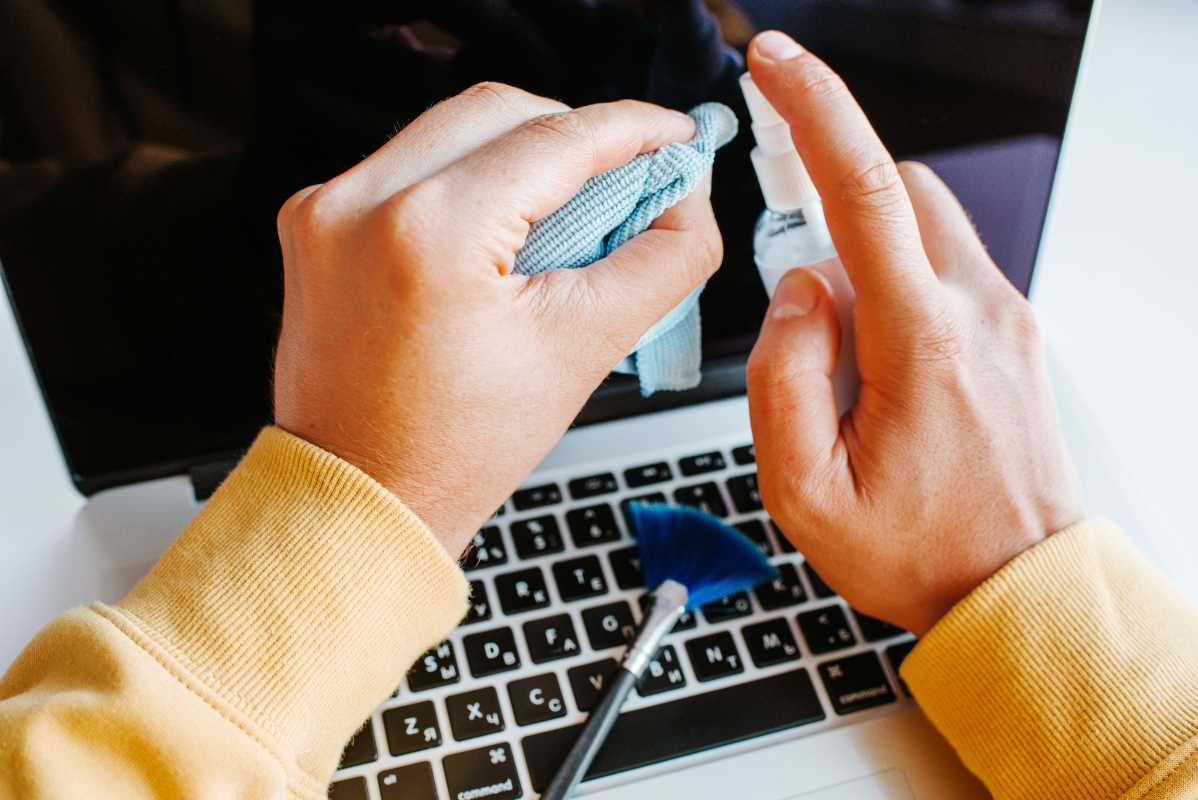
Your electronic equipment attracts dust like a magnet. This buildup can clog fans and cause components to overheat, shortening their lifespan. Unplug all your devices before you begin. Use a can of compressed air to blow dust out of your computer case, keyboard, and printer vents. Hold the can upright and use short bursts to avoid moisture damage.
Wipe down all surfaces, including your monitor, desk, chair, and shelves, with a microfiber cloth. For screens, use a dedicated electronics cleaning spray. Avoid harsh chemicals like window cleaner, which can damage the protective coating. Don't forget to vacuum the floor, paying special attention to the area around your desk where dust and debris gather. This is also a great time to clean your chair's upholstery or wipe down its armrests and base.
Digital File Organization
Your computer's desktop is not a permanent storage folder. A cluttered desktop can slow down your machine and make it impossible to find anything. Create a simple folder system on your main drive or cloud storage. A good structure might include folders like "Active Projects," "Archived Projects," "Finances," and "Personal."
Go through your downloads folder and delete any old installers or temporary files you no longer need. Drag any remaining files to their appropriate new homes within your folder system. Empty your computer's trash or recycling bin to free up disk space. This digital tidying makes finding documents much faster and can even improve your computer's performance.
Check Your Surge Protectors
Surge protectors don't last forever. The components inside that absorb power surges wear out over time. Most have a small indicator light that says "Protected" or "Grounded." Check to make sure this light is still on. Many experts recommend replacing your surge protectors every three to five years, or after a major electrical event like a lightning strike. Spring is a good time to check their age and plan for replacements.
Summer: Beat the Heat and Optimize Airflow
Summer brings longer days and higher temperatures. Your maintenance focus should shift to keeping your office cool and comfortable, which is crucial for both you and your electronics.
Manage Your Cables for Better Airflow
A tangled mess of cables behind your desk not only looks bad but also traps heat and restricts airflow. Unplug everything and take the time to untangle the mess. Use Velcro ties, zip ties, or a cable sleeve to bundle related cords together.
An under-desk cable management tray is an excellent investment. This wire basket attaches to the underside of your desk, lifting your power strip and all the cables off the floor. This creates an open channel for air to circulate, helping to keep your computer and other devices from overheating. It also makes cleaning the floor much easier.
Clean Your Fans
Your computer, and sometimes your monitor, has internal fans to keep the components cool. These fans pull in air, along with dust and pet hair. Pop open your computer case (after unplugging it) and gently wipe the fan blades with a cotton swab dipped in a little isopropyl alcohol. Use compressed air to blow out any dust trapped in the fan housing. A clean fan spins more efficiently, moving more air and keeping your system running at a safe temperature during the hot summer months.
Adjust Your Lighting
The summer sun can create intense glare on your monitor, causing eye strain and headaches. Adjust your desk position so the window is to your side, rather than directly in front of or behind you. Install light-filtering blinds or curtains that you can adjust throughout the day. You want to let in natural light without having direct sunbeams hit your screen. This simple adjustment can dramatically improve your visual comfort.
Autumn: Prepare for the Indoors and Back Up Your Data
As the weather cools, you will be spending more time indoors. Autumn is the ideal season to prepare your office for the cozy months ahead and to protect the work you've created all year.
Perform a Full Data Backup
Your data is the most valuable thing in your office. Hardware can be replaced, but your files cannot. You should have a consistent backup strategy in place, but autumn is a great time for a comprehensive check. A good rule of thumb is the 3-2-1 backup rule: three copies of your data, on two different types of media, with one copy stored off-site.
This could mean one copy on your computer's hard drive, a second on an external hard drive, and a third in the cloud (like Google Drive, Dropbox, or a dedicated backup service). Run a full system backup to your external drive and ensure your cloud backup is synced correctly. Test your backup by trying to restore a random file to make sure everything is working as it should.
Check Your Ergonomics
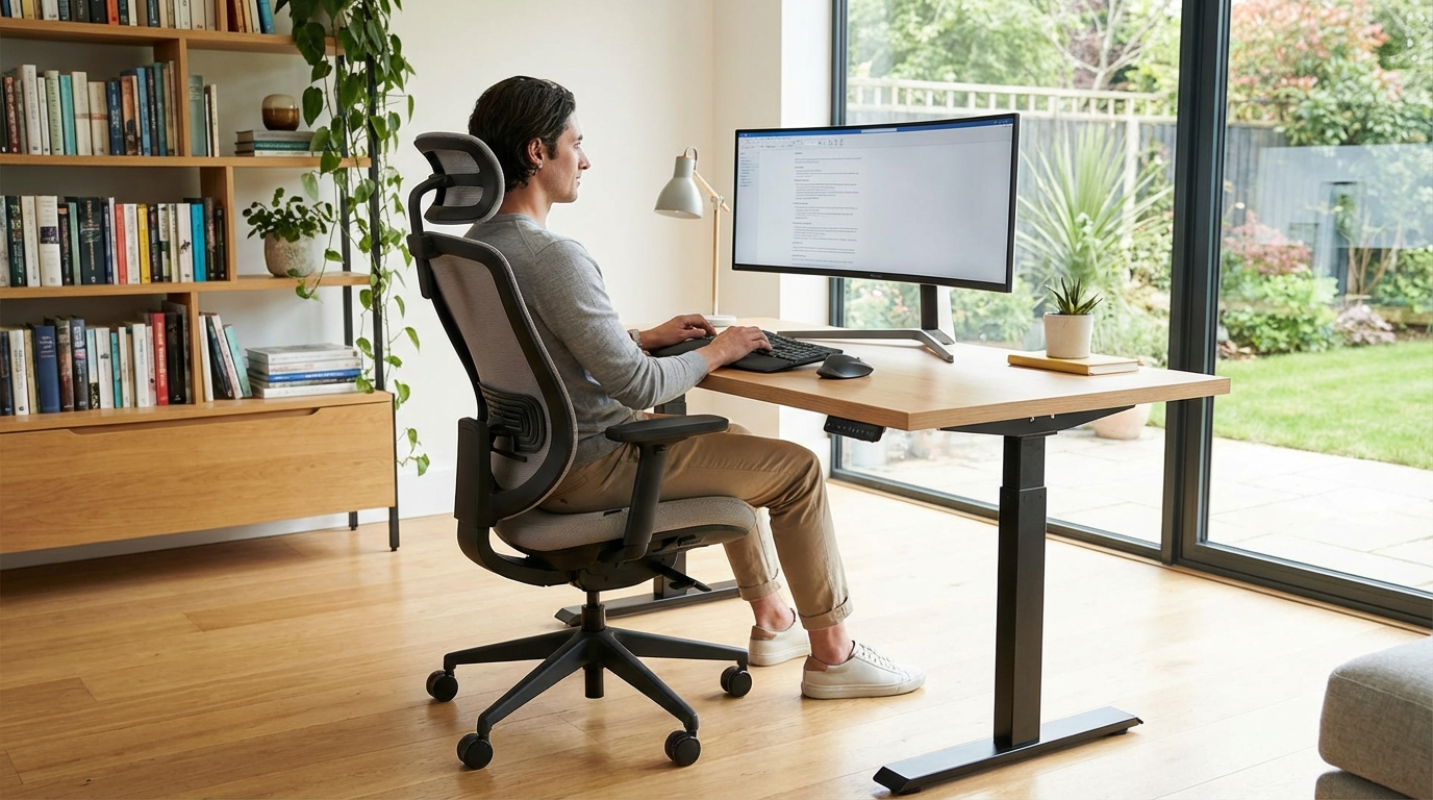
As you settle in for more indoor time, it's a good moment to reassess your physical setup. Your body can change, or you might have developed bad habits over the summer. Check your chair height. Your feet should be flat on the floor with your knees at a 90-degree angle.
Adjust your monitor height so the top of the screen is at or just below eye level. Your keyboard should be positioned so your wrists are straight when you type. Making these small adjustments can prevent the aches and pains that come from long hours of sitting.
Test Your Batteries
Test the batteries in your wireless mouse, keyboard, and any other battery-powered peripherals. You should also test the battery in your Uninterruptible Power Supply (UPS), if you have one. A UPS provides backup power during an outage, giving you time to save your work. Most have a self-test function you can run to ensure the battery still holds a charge. Replacing weak batteries now prevents interruptions later.
Winter: Maintain a Healthy Environment and Inspect Furniture
Winter often means a sealed-up house with dry, recycled air. Your focus this season should be on creating a healthy indoor environment and inspecting your furniture for wear and tear.
Clean and Maintain Air Quality Devices
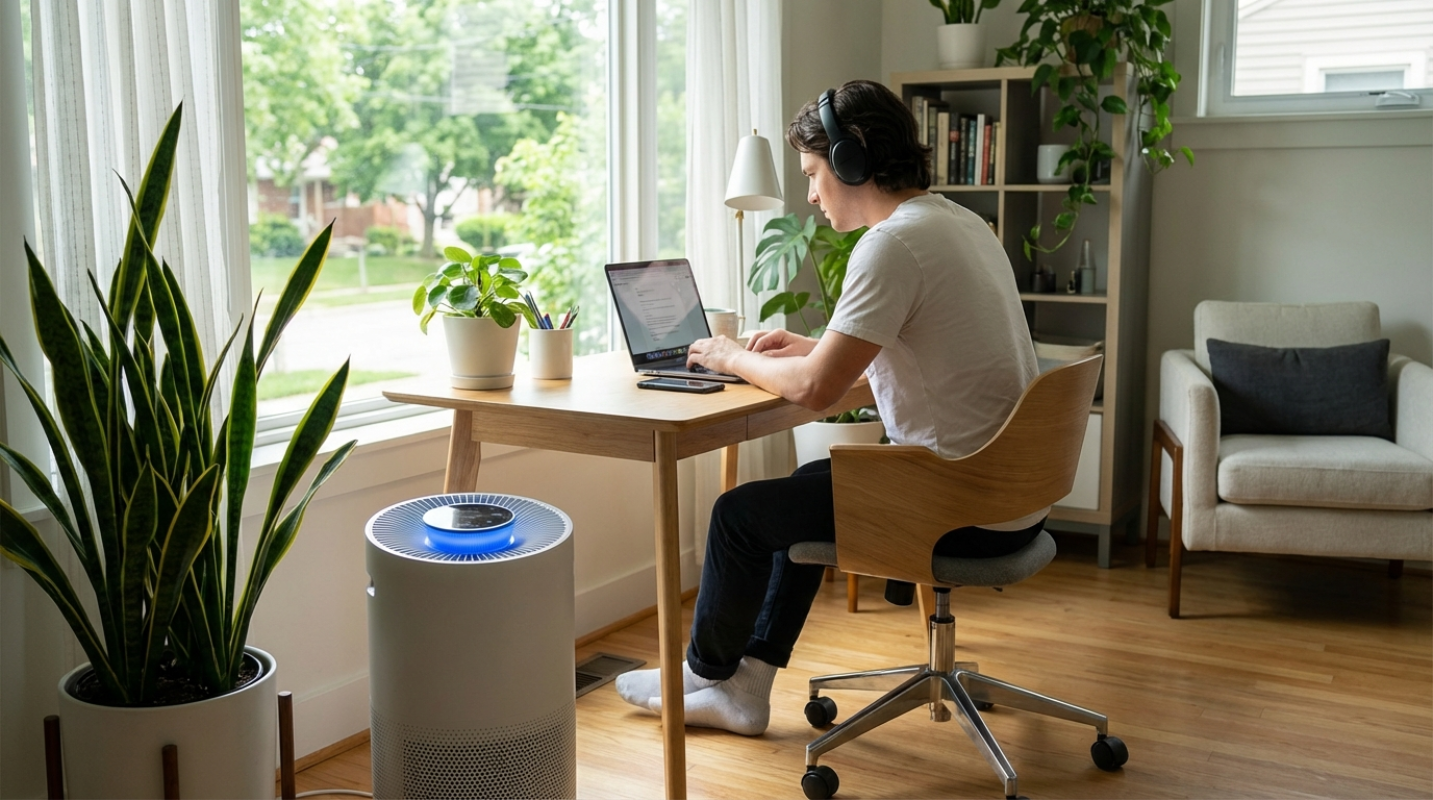
Dry winter air can be tough on your respiratory system and can even increase static electricity, which is a danger to electronic components. A humidifier can add much-needed moisture to the air in your office. Clean your humidifier regularly according to the manufacturer's instructions to prevent mold and bacteria growth. If you use an air purifier, winter is the perfect time to clean the filter or replace it with a new one.
Furniture Inspection and Tune-Up
Your office furniture works hard all year. Take a moment to inspect your chair. Tighten any loose bolts on the armrests, base, or mechanism. Check that the casters (wheels) are free of hair and debris so they roll smoothly. A drop of lubricant like WD-40 on squeaky parts can make a world of difference.
For a standing desk, check that all connections are secure and that the lifting mechanism operates smoothly. Wipe down the legs and motor housing to remove dust. A quick furniture tune-up ensures your ergonomic investments continue to support you properly.
Plan Your Tech Upgrades
The end of the year is a great time to evaluate your technology. Is your computer slowing down? Are you running out of storage space? Research potential upgrades or replacements. Holiday sales can be a great time to buy a new monitor, a faster solid-state drive (SSD), or more RAM. Making a plan now allows you to budget and watch for good deals, rather than making a panicked purchase when a component finally fails.